Production
How to Add Captions to YouTube Shorts: Methods, Styles, Placement and Accessibility

By the StickTale team
· 10 min read
You can add captions to a YouTube Short in three ways: tap Captions in the Shorts editor in the YouTube mobile app, add closed captions in YouTube Studio under Subtitles after upload, or burn styled captions into the video before you upload it. For explainer Shorts, burned-in captions give you the most control over style and placement, as long as you keep them clear of the like and comment buttons on the right and the channel name along the bottom. Below are the steps for each method, how many words to show at once, where to place them, and what makes captions accessible.
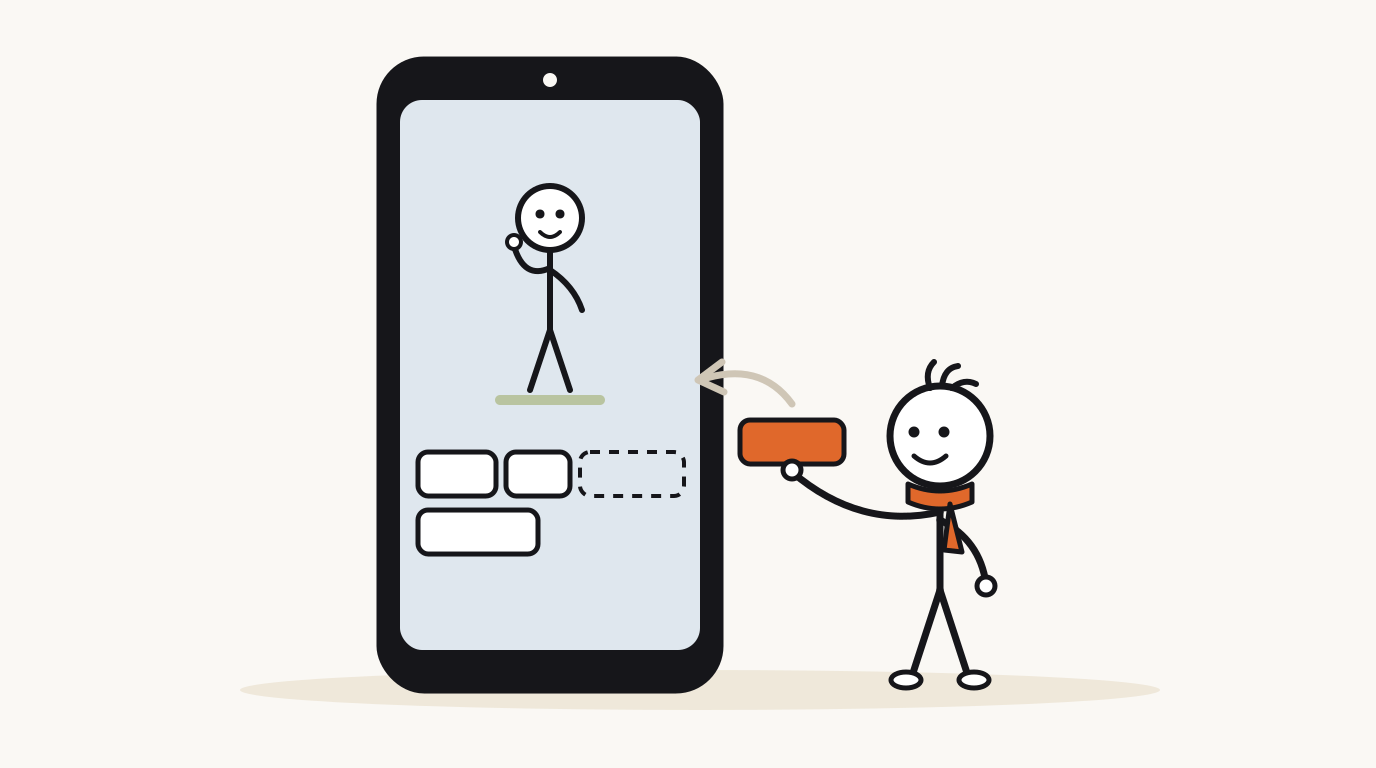
What are the ways to add captions to a YouTube Short?
There are two kinds of captions. Closed captions sit on top of the video and viewers can turn them on or off. Open captions, also called burned-in captions, are part of the picture and always show. The W3C's accessibility guide describes the difference and notes that most captions on the web are closed.
For Shorts, the choice is mostly about control. YouTube's own tools are fast and free, but the styles are limited and automatic captions need checking. Burned-in captions let you choose font, size, color, highlight and position, which matters on a small vertical screen where text competes with the buttons.
| Method | Where | Kind | Best for |
|---|---|---|---|
| Captions in the Shorts editor | YouTube app on your phone, before posting | Burned-in look, YouTube's styles | Shorts you film and edit on your phone. |
| Auto captions on clips | Shorts made from a long video in Studio | Added where available, editable | Cutting Shorts out of your long-form videos. |
| Subtitles in YouTube Studio | Desktop, after upload | Closed captions | Accessibility and viewers who turn on CC. |
| Burned in before upload | Your editor or video tool | Open captions | Explainers where style and placement matter. |
How do you add captions in the YouTube Shorts editor?
YouTube's help page for the Shorts editor says to tap Captions to add automatic captions, and that you can change the font and text color and correct the words. It also notes captions are currently available only in certain languages and on certain mobile devices, so the button may be missing for you.
For Shorts made from a long video, YouTube Studio's clips tool adds automatic captions where available, built from the video's transcript. You can change their color, font, styling and position, or turn them off, from the Captions option at the bottom left of the preview.
- Open the YouTube app, start a new Short, and record or upload your clip.
- In the editor, tap Captions. Wait for the automatic captions to appear.
- Read every caption against the audio and correct names, numbers and technical terms.
- Change the font and color if the default clashes with your picture.
- Preview the full Short and check the captions don't sit under the buttons on the right or the text at the bottom.
- For a label that isn't speech, like a date or a name, use the Text tool, which lets you set color, style and alignment, and the timeline to set how long it shows.
How do you add or fix closed captions in YouTube Studio?
Closed captions are added after upload on a computer. YouTube Studio offers three ways to add them: upload a caption file, paste a transcript and let YouTube auto-sync the timing, or type captions while the video plays. Automatic captions, when available, are published on their own, in the video's default language only.
If you wrote a script, auto-sync is the fastest accurate option: paste the script, and YouTube times it to the audio. If you already have a caption file, YouTube's list of supported formats recommends basic SRT or SBV files for beginners. Note that those basic formats ignore styling, and WebVTT supports positioning but only basic bold, italic and underline styles.
- Open YouTube Studio on a computer and select Subtitles in the left menu.
- Choose your Short, then select Add language and pick the language.
- Under Subtitles, select Add, then choose Upload file, Auto-sync or Type manually.
- For auto-sync, paste your final script exactly as narrated, then review the timing.
- To fix automatic captions, select the options next to them, edit the wrong lines and publish.
Should you burn in captions or use closed captions?
For narrated explainer Shorts, burn them in. Captions are part of the visual design in this format: they carry the words when the sound is off, they guide the eye to the key term, and their size and position need to fit each picture. YouTube's built-in styles can't place text scene by scene around a character.
Closed captions still have a job. They are what many viewers who rely on captions turn on, and some players let viewers change their size, color and position, which burned-in text can't offer. The catch is that if you burn in captions and a viewer turns on closed captions too, they get two layers of text. A simple rule: burn in for design, and if you also upload closed captions, keep them identical to the narration so they match.
| Question | Burned-in (open) | Closed |
|---|---|---|
| Can viewers turn them off? | No | Yes |
| Full control of font, color and highlight? | Yes | Limited |
| Can you move them per scene? | Yes | Only with a positioning format like WebVTT |
| Show when the sound is off by default? | Yes | Only if the viewer turned captions on |
| Survive a download or repost to another app? | Yes | No |
Which caption style should you use for an explainer Short?
Four styles cover nearly every Short. They differ in how much attention the captions take from the picture. In a stick-figure explainer, the picture carries the story, so the captions should support it, not compete with it.
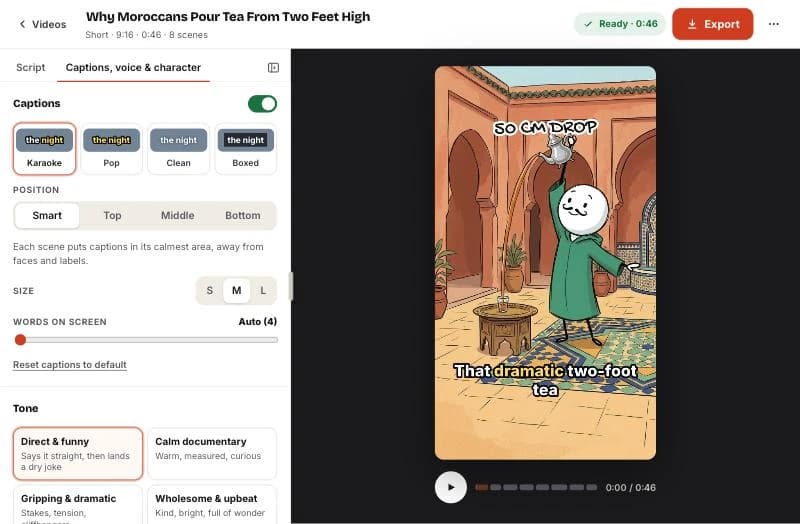
The screenshot shows the caption panel in StickTale, with karaoke, pop, clean and boxed styles, a position setting and a words-on-screen slider. Smart placement puts each scene's captions in its calmest area, away from the character's face and the hand-lettered labels.
| Style | What it looks like | Best for | Watch out for |
|---|---|---|---|
| Karaoke | A short phrase stays on screen and the spoken word is highlighted. | Fast narration and key terms you want noticed. | A highlight color that disappears on the background. |
| Pop | Words appear one at a time or in tiny bursts. | Punchy, funny reads and short hooks. | Too much motion during calm, reflective lines. |
| Clean | Plain text with an outline or shadow. | Documentary tone and busy pictures. | Low contrast on light backgrounds. |
| Boxed | Text on a solid or semi-solid box. | Maximum readability on any picture. | The box covering part of the drawing. |
How many words should be on screen at once?
Work it out from the narration. At about 150 words a minute, or 2.5 words a second, each chunk of captions stays up for its word count divided by 2.5. Three words last 1.2 seconds, four last 1.6 seconds, and an eight-word, two-line caption lasts 3.2 seconds.
Short chunks of three to five words suit Shorts: big text, one glance, in step with the voice. Longer two-line captions read more like traditional subtitles and suit calmer long-form videos. The Described and Captioned Media Program's Captioning Key recommends no more than two lines per caption and no more than 6 seconds on screen, and sets presentation rates of 140 to 160 words a minute for educational media. Verbatim captions of a 150-word-a-minute narration sit inside that range.
| Words per chunk | Seconds on screen | Feel | Use it for |
|---|---|---|---|
| 1 to 2 | 0.4 to 0.8 | Very fast, flickery | Single punch words only, like a hook. |
| 3 to 4 | 1.2 to 1.6 | Brisk, easy to follow | Most explainer Shorts. |
| 5 to 6 | 2.0 to 2.4 | Relaxed, one long line | Calm documentary tone. |
| 7 to 10 (two lines) | 2.8 to 4.0 | Subtitle-like | Long-form and dense dialogue. |
Where should captions go on a YouTube Short?
Two parts of a Short are covered by YouTube's interface. Down the right side sit the like, dislike, comment and share buttons, and along the bottom sit the channel name and a line of title or description text; YouTube's Shorts ad specs describe the same layout. Captions placed in those areas get covered on many phones.
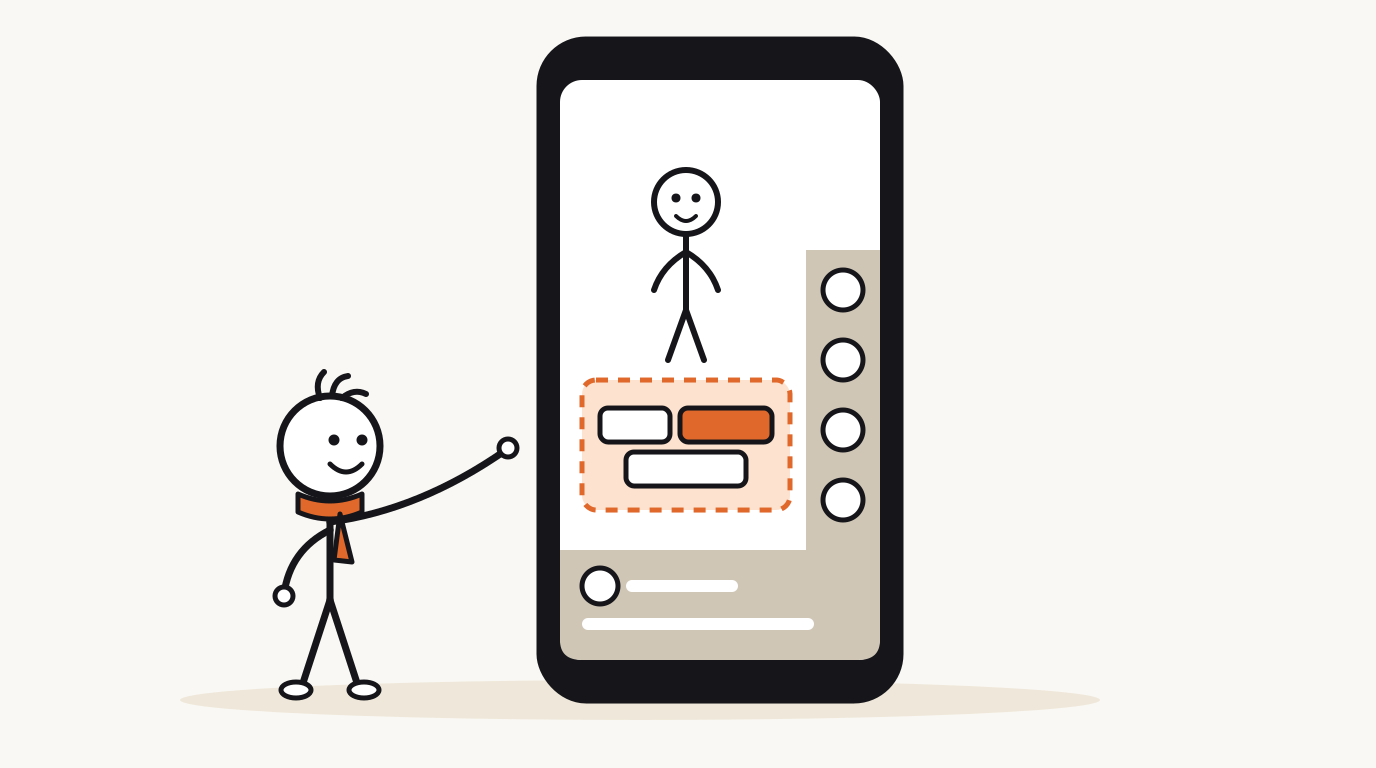
YouTube doesn't publish a pixel safe zone for creators in the help pages we checked, so use a working rule and then test it. Keep captions roughly in the middle third of the frame's height, keep the right edge of the text well clear of the button column, and never put them on the character's face or mouth. The Captioning Key's placement rule is the same idea: captions should not cover names, faces or mouths.
- Export a test version and upload it as private.
- Open it on your own phone in the Shorts player and take a screenshot.
- Check every caption position against the buttons, the bottom text and the character.
- Move any caption that touches the interface up toward the middle, and recheck on a second phone size if you can.
How do you make Shorts captions accessible?
Captions exist first for people who can't hear the audio. The W3C defines them as a text version of both speech and the non-speech sounds needed to understand the content, and warns that automatic captions don't meet accessibility needs unless they are fully accurate. Stylish captions that misspell the key term fail the viewer who depends on them.
Most of the checklist below costs nothing but a careful review. For more on making Shorts that work with or without sound, see our guide to YouTube Shorts for explainers and the companion piece on explainer video pacing, which sets the narration speed your captions follow.
- Accurate: every word matches the narration, including names, numbers and units.
- In sync: each chunk appears as the words are spoken, not a beat late.
- Readable: high contrast against the picture; use the boxed style on busy backgrounds.
- Mixed case: the Captioning Key prefers mixed case for readability and reserves capitals for shouting.
- Short: no more than two lines and no more than 6 seconds on screen per caption.
- Meaningful sounds included: if a sound matters to the story, like a crash or a bell, caption it in brackets.
- Not color alone: a karaoke highlight is a bonus; the words must make sense without it.
Questions
Why are there no automatic captions on my YouTube Short?
Automatic captions may not be ready right after upload, and YouTube lists other reasons they may not appear: an unsupported language, poor sound, overlapping speakers or a long silence at the start. In the Shorts editor, captions are also only available in some languages and on some devices.
Can I add captions to a Short after I upload it?
Yes. In YouTube Studio on a computer, open Subtitles, choose the Short, add a language and upload a caption file, auto-sync a transcript or type captions manually. These are closed captions that viewers can turn on or off; burned-in captions have to be added before upload.
What caption file format does YouTube accept?
Many, including SRT, SBV, WebVTT, TTML and SCC. YouTube recommends basic SRT or SBV files for beginners because they are plain text and easy to edit, but basic formats ignore styling. WebVTT supports positioning.
How many words should Shorts captions show at once?
Three to five words is a good default. At a normal narration pace of about 2.5 words a second, a four-word chunk stays on screen about 1.6 seconds, which is long enough to read at a glance and short enough to stay in step with the voice.
Do captions help YouTube Shorts get more views?
YouTube's help pages don't say captions affect how Shorts are recommended. What they do is make your Short understandable with the sound off and accessible to viewers who are deaf or hard of hearing, which helps viewers stay with the video.
Make your first stickman video
StickTale is in private beta. Join the waitlist and we’ll send your invite as soon as a spot opens.